BlockBook Developer Guide
The developer guide will be updated iteratively as the implementation progresses. The current content is based on the design decisions we have made so far, and may be updated as we make more design decisions in the future.
Acknowledgements
- BlockBook is based on the AB-3 codebase.
- Some of the graphic assets are Minecraft textures.
- The UI mockup was generated with ChatGPT using the following input.
Setting up and getting started
Refer to the guide: Setting up and getting started.
Design
Architecture
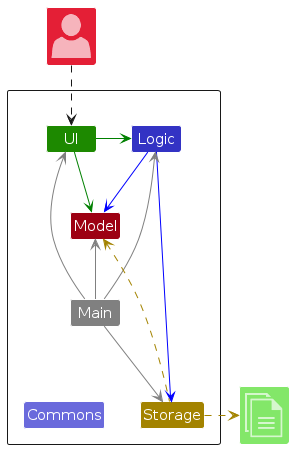
The Architecture Diagram given above explains the high-level design of the App.
Given below is a quick overview of main components and how they interact with each other.
Main components of the architecture
Main (consisting of classes Main and MainApp) is in charge of the app launch and shut down.
- At app launch, it initializes the other components in the correct sequence, and connects them up with each other.
- At shut down, it shuts down the other components and invokes cleanup methods where necessary.
The bulk of the app's work is done by the following four components:
UI: The UI of the App.Logic: The command executor.Model: Holds the data of the App in memory.Storage: Reads data from, and writes data to, the hard disk.
Commons represents a collection of classes used by multiple other components.
How the architecture components interact with each other
The Sequence Diagram below shows how the components interact with each other for the scenario where the user issues the command delete 1.
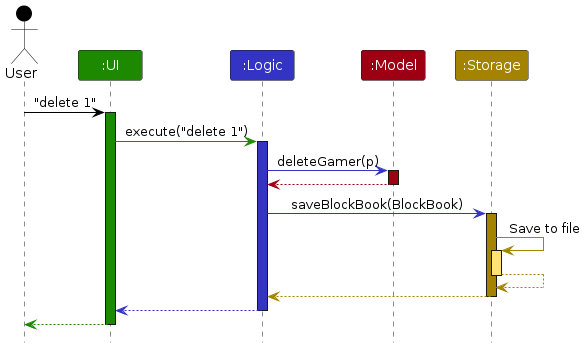
Each of the four main components (also shown in the diagram above),
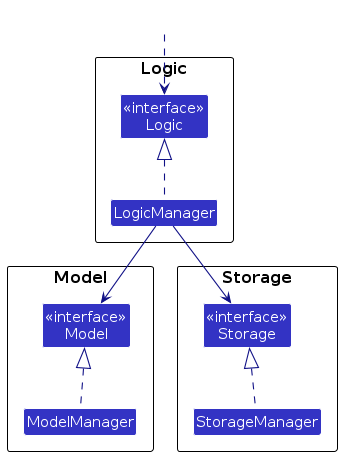
- defines its API in an
interfacewith the same name as the Component. - implements its functionality using a concrete
{Component Name}Managerclass (which follows the corresponding APIinterfacementioned in the previous point.
For example, the Logic component defines its API in the Logic.java interface and implements its functionality using the LogicManager.java class which follows the Logic interface. Other components interact with a given component through its interface rather than the concrete class (reason: to prevent outside component's being coupled to the implementation of a component), as illustrated in the (partial) class diagram below.
The sections below give more details of each component.
UI component
The API of this component is specified in Ui.java
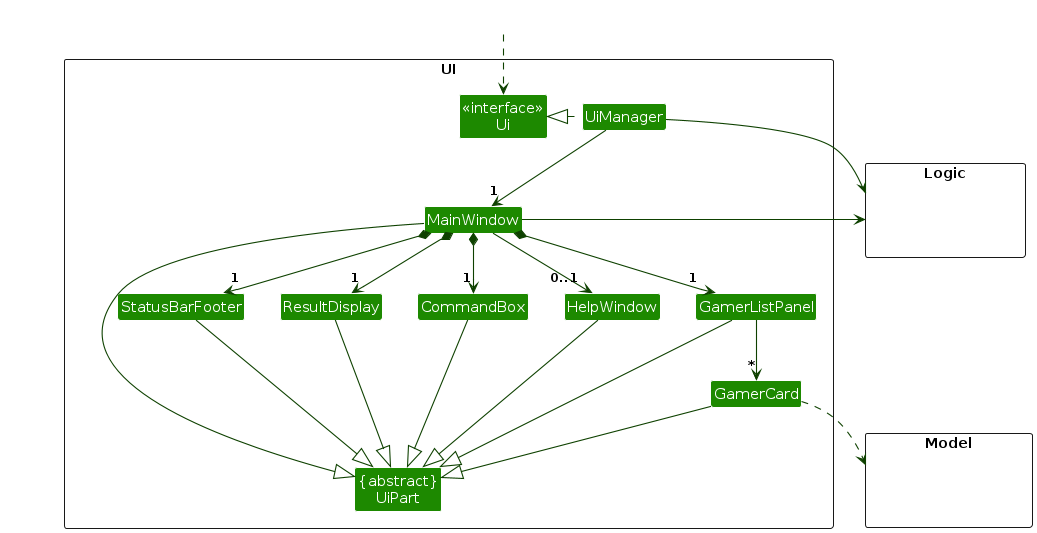
The UI consists of a MainWindow that is made up of parts such as CommandBox, ResultDisplay, GamerListPanel,
GroupListPanel, and StatusBarFooter. The GamerListPanel uses GamerCard to render each gamer contact, and the
GroupListPanel uses GroupCard to render each group. The UI also includes pop-up windows like HelpWindow
and ViewWindow, where ViewWindow displays a GamerPopupCard. All these, including the MainWindow, inherit
from the abstract UiPart class which captures the commonalities between classes that represent parts of the visible GUI.
The UI component uses the JavaFx UI framework. The layout of these UI parts are defined in matching .fxml files that are in the src/main/resources/view folder. For example, the layout of the MainWindow is specified in MainWindow.fxml
The UI component,
- executes user commands using the
Logiccomponent. - listens for changes to
Modeldata so that the UI can be updated with the modified data. - keeps a reference to the
Logiccomponent, because theUIrelies on theLogicto execute commands. - depends on some classes in the
Modelcomponent, as it displaysGamerobject residing in theModel.
Logic component
API : Logic.java
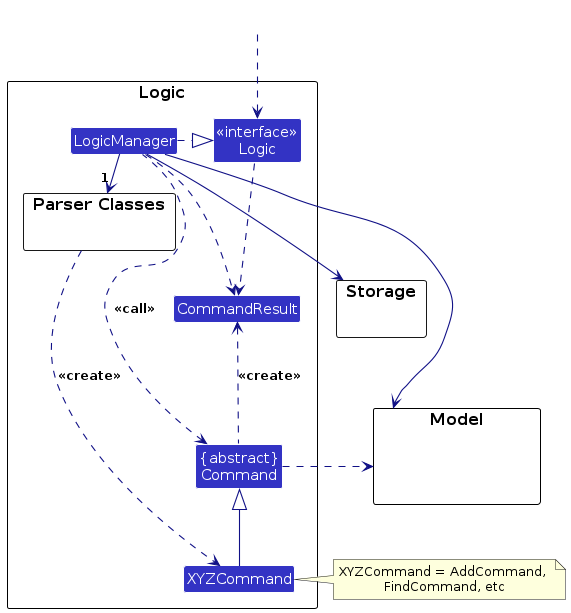
Here's a (partial) class diagram of the Logic component:
The sequence diagram below illustrates the interactions within the Logic component, taking execute("delete 1") API call as an example.
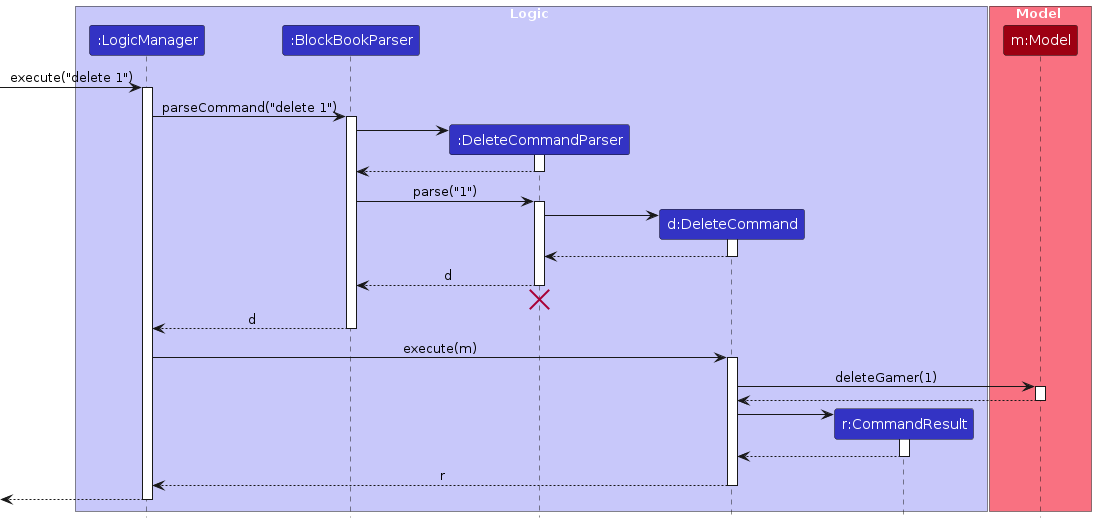
Note: The lifeline for DeleteCommandParser should end at the destroy marker (X) but due to a limitation of PlantUML, the lifeline continues till the end of diagram.
How the Logic component works:
- When
Logicis called upon to execute a command, it is passed to aBlockBookParserobject which in turn creates a parser that matches the command (e.g.,DeleteCommandParser) and uses it to parse the command. - This results in a
Commandobject (more precisely, an object of one of its subclasses e.g.,DeleteCommand) which is executed by theLogicManager. - The command can communicate with the
Modelwhen it is executed (e.g. to delete a gamer).
Note that although this is shown as a single step in the diagram above (for simplicity), in the code it can take several interactions (between the command object and theModel) to achieve. - The result of the command execution is encapsulated as a
CommandResultobject which is returned back fromLogic.
Here are the other classes in Logic (omitted from the class diagram above) that are used for parsing a user command:
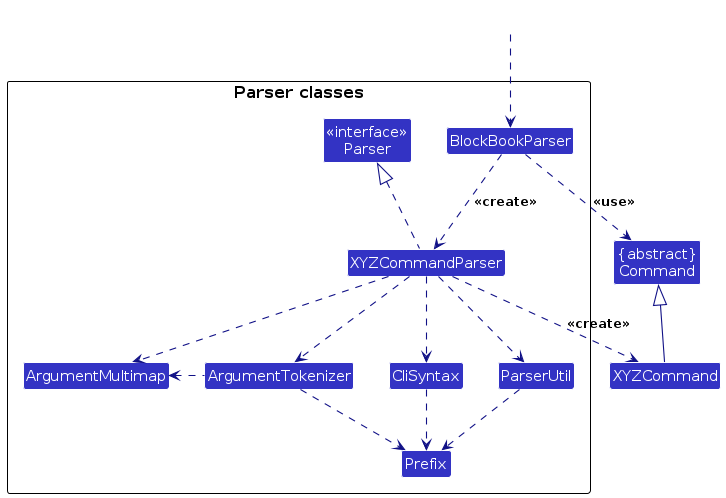
How the parsing works:
- When called upon to parse a user command, the
BlockBookParserclass creates anXYZCommandParser(XYZis a placeholder for the specific command name e.g.,AddCommandParser) which uses the other classes shown above to parse the user command and create aXYZCommandobject (e.g.,AddCommand) which theBlockBookParserreturns back as aCommandobject. - All
XYZCommandParserclasses (e.g.,AddCommandParser,DeleteCommandParser, ...) inherit from theParserinterface so that they can be treated similarly where possible e.g, during testing.
Model component
API : Model.java
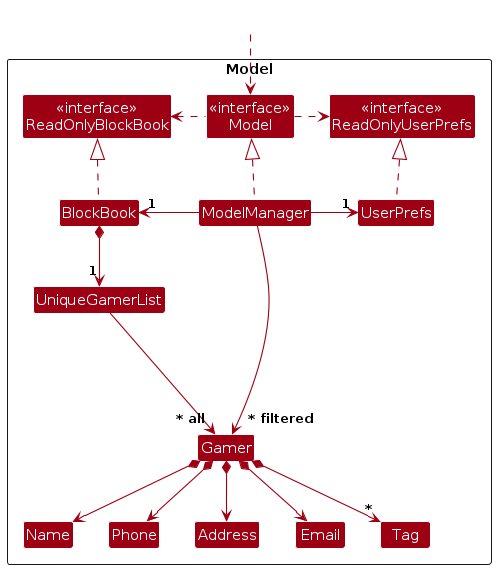
The Model component,
- stores contact data i.e., all
Gamerobjects (which are contained in aUniqueGamerListobject) and allGroupobjects (which are contained in aUniqueGroupListobject).- stores the currently 'selected'
Gamerobjects (e.g., results of a search query) as a separate sorted and filtered list which is exposed to outsiders as an unmodifiableObservableList<Gamer>that can be 'observed' e.g. the UI can be bound to this list so that the UI automatically updates when the data in the list change.
- stores the currently 'selected'
- stores a
UserPrefsobject that represents the user's preferences. This is exposed to the outside as aReadOnlyUserPrefsobject. - does not depend on any of the other three components (as the
Modelrepresents data entities of the domain, they should make sense on their own without depending on other components)
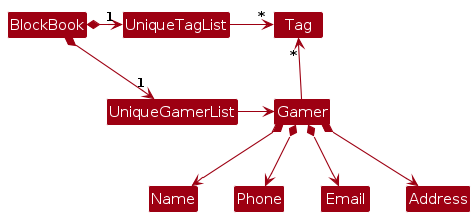
Note: An alternative (arguably, a more OOP) model is given below. It has a Group list in the BlockBook, which Gamer references. This allows BlockBook to only require one Group object per unique group, instead of each Gamer needing their own Group objects.
Storage component
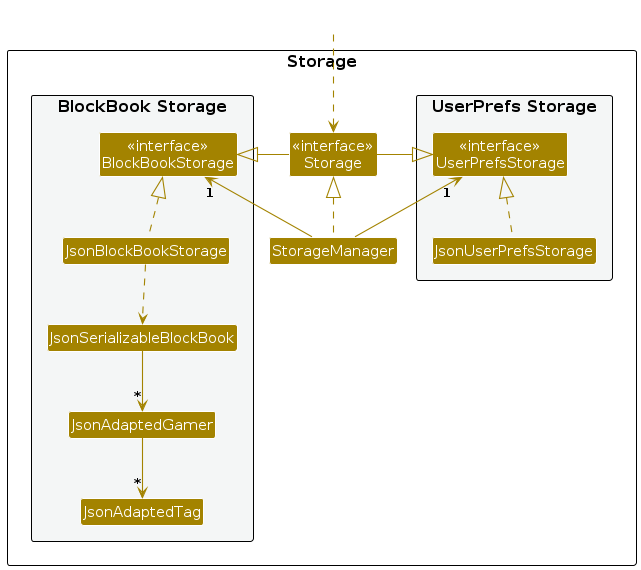
API : Storage.java
The Storage component,
handles persistence for both BlockBook data and user preference data, saving and loading them in JSON format.
stores BlockBook contact data in
contacts.json(default:[JAR file location]/BlockBook/contacts.json) and user preferences inpreferences.json(default:[JAR file location]/BlockBook/preferences.json). The user preferences file path is configurable viaconfig.json(default:[JAR file location]/BlockBook/config.json), while the contacts file path is managed throughUserPrefs.Storageextends bothBlockBookStorageandUserPrefsStorage, so it can be used through either interface when only one set of storage operations is needed. It also depends on Model-layer classes because it persists and reconstructs model objects (e.g.,ReadOnlyBlockBook,ReadOnlyUserPrefs,UserPrefs).
Common classes
Classes used by multiple components are in the seedu.blockbook.commons package.
Implementation
Add gamer feature
The Add feature allows users to create a new gamer contact in BlockBook by entering an add command with a required gamertag and optional fields such as name, phone number, email address, server, country, region, and note. This feature allows users to record gamer contacts efficiently while ensuring that the updated data is saved after a successful add operation.
The sequence diagram below illustrates the main interactions that take place when an add command is executed.
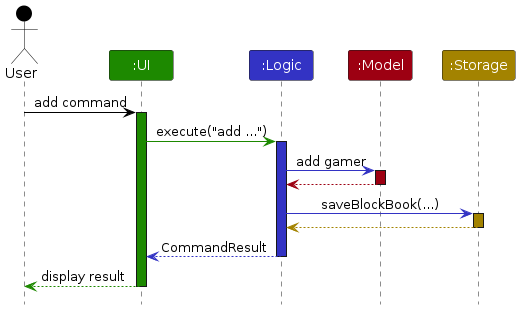
User enters command:
The process begins when the user types an add command into the UI.
UI passes command to Logic: After receiving the command, the UI forwards it to the Logic component for processing.
Logic parses the command:
Within the Logic component, the command is recognized as an add command. The input is then parsed internally, where the command arguments are validated and converted into the corresponding gamer attribute objects before an AddCommand is created.
Logic updates the Model:
The AddCommand is executed using the current Model. During this step, BlockBook checks whether a gamer with the same gamertag already exists. If no duplicate is found, the new gamer contact is added to the Model.
Logic saves the updated data: Once the gamer has been added successfully, the Logic component calls the Storage component to persist the updated BlockBook data.
Storage writes data to file: The Storage component saves the updated data to file so that the newly added gamer contact is retained after the application closes.
Logic returns the result:
After the save operation is completed, Logic produces a CommandResult describing the outcome of the operation.
UI shows the outcome: Finally, the UI displays the result to the user, such as a success message when the gamer is added or an error message if the operation fails.
Documentation, logging, testing, configuration, dev-ops
Future Developments
In the future, we plan to implement the following features and enhancements to further improve the functionality and user experience of BlockBook.
Planned Enhancements
These are some enhancements that we plan to implement in the future.
Validation of Invalid Prefixes
Current parser limitation: for commands with multiple prefixes, malformed extra prefixes can trigger field-level
validation errors instead of invalid command format.
For example, entering edit 1 region/na er/asd returns invalid region instead of invalid command format.
Clearing Optional Fields
Current parser and validation limitation: once optional fields (e.g., phone, email, etc.) are set using add or
edit, there is no way for the user to clear them. Editing a field with an empty value (e.g., n/) is rejected by
validation, while omitting the prefix keeps the existing value unchanged.
Handle prefix-like Text in note/ Field
Current parser limitation: Although note/NOTE does not allow /, if it contains prefix-like
substrings (e.g., p/ or r/), it will be tokenized as new command arguments. This
trigger validation errors for unrelated fields.
Command History Log
Purpose: Allows the user to view a history of previously sent commands Outputs: Commands are added to a log file
Sorting Contacts by Added Date
Purpose Allows the user to sort contacts by added date. Value Lets user access their most recent added contacts more easily.
Favourites List
Purpose: Allows the user to add contacts to a favourites list. Value: Lets users access their favourite contacts more easily.
Profile Picture Support
Purpose: Allows the user to upload an image for each gamer contact card in the contacts via a button in GUI/(Or via CLI add?). Acceptable values: IMAGESRC → Compulsory, path to the image file source. Error messages:
- Invalid file format: “BlockBook only supports a valid .png/.jpg file. Please choose another file. ”
- Missing/Corrupted file: “Profile picture file cannot be found or is corrupted. Reverting to default image. ” Outputs:
Success: "Profile picture updated to the image located at {IMAGESRC}" Possible errors:
- Invalid file format
- Missing file
- Corrupted file
Theme Customization
Allow the user to customize the theme of the app (e.g., light mode, dark mode, etc.) via a theme command in CLI or a button in GUI.
The user can choose from predefined themes or create their own custom theme by specifying colors for different UI elements.
Purpose: Allows the user to customize the theme of the app (e.g., light mode, dark mode, etc.)
Acceptable values: THEME → Compulsory, the theme to set the app to. Possible values include "light", "dark", and "custom".
Better contacts.json Handling
The current implementation that handles contacts.json will render the entire file invalid once a single entry has an error.
Improve the handling of the contacts.json file to allow valid entries to be shown in BlockBook while ignoring invalid entries.
Requirements
Product scope
Target user profile:
- Minecraft player
- Discord user
- Has a Minecraft gamertag
- CLI users, fast typer
- Comfortable typing Minecraft commands
- Needs to keep track of a significant number of contacts for gaming together
Value proposition: BlockBook makes it easy for Minecraft gamers to connect with other players by saving contacts of players they meet on servers. With a familiar command line interface, adding, organising and finding is a breeze.
User stories
Priorities: High (must have) - * * *, Medium (nice to have) - * *, Low (unlikely to have) - *
| Priority | As a ... | I want to ... | So that I can... |
|---|---|---|---|
* * * | general user | add a new gamer | link multiple contact methods to a gamer |
* * * | general user | delete a gamer | remove gamers that I no longer need |
* * * | general user | list out my saved gamers | see the gamers that I saved previously |
* * * | general user | view a gamer’s profile with their full details | access comprehensive details when needed |
* * | general user | find a gamer by name | locate details of gamers without having to go through the entire list |
* * | new user | see usage instructions | figure out how to use the app easily |
* * | general user | update gamer details | keep track of my gamers' latest information |
* * | general user | avoid adding duplicate gamers | not store the same gamer twice by accident |
* * | general user | sort the gamers alphabetically | access my gamer contacts easier |
* * | general user | sort the gamers by added date | find the gamers I recently added |
* * | Minecraft gamer / pro typer | delete gamers in bulk | delete more gamers at one go |
* * | general user | see clear error messages when I enter invalid commands | correct my mistakes quickly |
* * | general user | add gamers to a favourites list | access my favourite gamers easier |
* * | general user | list out my favourite gamers | find my favourite gamers |
* * | general user | add a personal note to a gamer's profile | preserve context information about a gamer |
* * | general user | create a social group | create groups with contacts with a gamer |
* * | general user | add gamers to social groups | find the gamers I want to play with based on context |
* | general user | use autocomplete when typing in CLI | type faster and easier when I forget the command |
* | general user | add a profile picture to a gamer | recognise gamers more easily via visuals |
* | Minecraft gamer | see quality sprite styles that align with Minecraft | have a good interface experience |
Use cases
(For all use cases below, the System is the BlockBook (BB) and the Actor is the user, unless specified otherwise)
As these represent the expected behaviour of the final iteration, some use cases might not reflect the current functionality of the app.
UC01 - Add a Gamer Contact
MSS
- User chooses to add a new gamer contact.
- User provides the required gamertag and any optional fields.
- BlockBook saves the new gamer contact and displays a success message with the updated contact list.
Use case ends.
Extensions
2a. The required gamertag field is missing.
- 2a1. BlockBook displays an error message showing the correct command format.
- 2a2. User re-enters the add command with corrected input.
- Use case resumes at step 1.
2b. One or more specified fields contain invalid values.
- 2b1. BlockBook displays an error message indicating that the input is invalid.
- 2b2. User re-enters the add command with corrected input.
- Use case resumes at step 1.
2c. A contact with the same gamertag already exists.
- 2c1. BlockBook displays an error message indicating that the gamertag is already in use.
- 2c2. User re-enters the add command with a different gamertag.
- Use case resumes at step 1.
UC02 - List All Gamer Contacts
MSS
- User chooses to view all saved contacts.
- BlockBook displays a list of all contacts with their details in the default order.
Use case ends.
Extensions
2a. The contact list is empty.
- 2a1. BlockBook informs the user that no contacts are currently stored.
- Use case ends.
UC03 - Favourite/Unfavourite a Contact
MSS
- User requests to favourite/unfavourite a contact by index.
- BlockBook updates favourite status and displays confirmation.
Use case ends.
Extensions
1a. User enters an invalid index (non-numeric).
- 1a1. BlockBook displays an error message.
- Use case ends.
1b. User enters an index that is out of range.
- 1b1. BlockBook displays an error message.
- Use case ends.
1c. The contact list is empty.
- 1c1. BlockBook informs the user that there are no contacts to update.
- Use case ends.
2a. The contact is already marked as a favourite.
- 2a1. BlockBook notifies the user that the contact is already a favourite.
- Use case ends.
2b. The contact is already not a favourite.
- 2b1. BlockBook notifies the user that the contact is already not a favourite.
- Use case ends.
UC04 - Sort Gamer Contacts
MSS
- User requests to sort contacts by one or more attributes.
- BlockBook sorts and displays the currently displayed contacts by the specified attributes in priority order.
Use case ends.
Extensions
1a. User does not specify any attributes.
- 1a1. BlockBook uses gamertag as the default sort attribute.
- Use case resumes from step 2.
1b. User specifies one or more invalid attributes.
- 1b1. BlockBook displays an error message indicating that one or more sort attributes are invalid.
- Use case ends.
1c. User specifies duplicate attributes.
- 1c1. BlockBook displays an error message indicating that duplicate sort attributes are not allowed.
- Use case ends.
2a. There are no currently displayed contacts to sort.
- 2a1. BlockBook informs the user that there are no contacts to sort.
- Use case ends.
UC05 - Edit a Gamer Contact
MSS
- User requests to edit a contact by specifying the contact index and one or more fields to update.
- BlockBook updates the contact and displays a success message with the updated contact details.
Use case ends.
Extensions
1a. User enters an invalid index (non-numeric).
- 1a1. BlockBook displays an error message.
- 1a2. User re-enters the edit command with corrected input.
- Use case resumes at step 1.
1b. User enters an index that is out of range.
- 1b1. BlockBook displays an error message.
- 1b2. User re-enters the edit command with a valid index.
- Use case resumes at step 1.
1c. User provides no fields to edit.
- 1c1. BlockBook displays an error message.
- 1c2. User re-enters the edit command with at least one field to edit.
- Use case resumes at step 1.
1d. The new gamertag is already in use by another contact.
- 1d1. BlockBook displays an error message indicating that the gamertag is already in use.
- 1d2. User re-enters the edit command with a different gamertag.
- Use case resumes at step 1.
1e. One or more entered values are invalid.
- 1e1. BlockBook displays an error message indicating that the input is invalid.
- 1e2. User re-enters the edit command with corrected input.
- Use case resumes at step 1.
UC06 - Delete a Gamer Contact
Preconditions
- User knows the index of the contact they wish to delete (e.g. having previously executed UC02)
- User has at least one contact saved in BlockBook.
MSS
- User requests to delete one or more contacts.
- BlockBook deletes the contacts specified and displays a confirmation message. Use case ends.
Extensions
1a. User enters an invalid index.
- 1a1. BlockBook displays an error message.
- Use case ends.
1b. The contact list is empty.
- 1b1. BlockBook informs the user that there are no contacts to delete.
- Use case ends.
UC07 - View a Gamer Contact
Preconditions
- User has a list of gamer contacts displayed and knows the index of the contact to view (e.g. after UC02).
MSS
- User requests to view a gamer contact by its index in the current list.
- BlockBook displays the contact's full profile details.
Use case ends.
Extensions
1a. User enters a non-numeric index.
- 1a1. BlockBook displays an error message.
- Use case ends.
1b. Index is out of range.
- 1b1. BlockBook displays an error message.
- Use case ends.
UC08 - Find Gamer Contacts
MSS
- User requests to find gamer contacts using search criteria.
- BlockBook shows the matching gamer contacts and a message indicating the number found.
Use case ends.
Extensions
1a. User enters empty input or mixes global keywords with prefixed arguments.
- 1a1. BlockBook displays an invalid command format message and the correct usage.
- Use case ends.
1b. User provides an invalid prefixed value (e.g., email/phone/group format is invalid).
- 1b1. BlockBook displays the relevant constraint message.
- Use case ends.
2a. BlockBook finds no matching gamers.
- 2a1. BlockBook displays a “no gamers found” message and does not update the current list.
- Use case ends.
UC09 - Clear all Gamer Contacts
MSS
- User requests to clear all contacts.
- BlockBook prompts the user for confirmation.
- User confirms.
- BlockBook deletes all contacts and displays a success message.
Extensions 2a. User does not follow through with confirmation.
- Use case ends 3a. User used the wrong confirmation input.
- 3a1. BlockBook displays an error message and prompts the user for confirmation again.
- Use case resumes from step 3.
UC10 - Show Help
MSS
- User requests to view the help message.
- BlockBook displays a help message that includes a summary of all available commands and their usage.
Use case ends.
UC11 - Create a Group
MSS
- User requests to create a group with a group name.
- BlockBook creates the group and displays a success message.
Use case ends.
Extensions 1a. The group name is invalid.
- 1a1. BlockBook displays an error message.
- Use case ends.
1b. A group with the same name already exists.
- 1b1. BlockBook displays an error message.
- Use case ends.
UC12 - Edit a Group
MSS
- User requests to edit a group by its index and provides a new group name.
- BlockBook updates the group name and displays a success message.
Use case ends.
Extensions 1a. User enters an invalid index.
- 1a1. BlockBook displays an error message.
- Use case ends.
1b. The group name is invalid.
- 1b1. BlockBook displays an error message.
- Use case ends.
1c. A group with the same name already exists.
- 1c1. BlockBook displays an error message.
- Use case ends.
UC13 - Delete a Group
MSS
- User requests to delete a group by its index.
- BlockBook prompts the user with a confirmation code and repeats the required delete format.
- User confirms by entering the group index and confirmation code.
- BlockBook deletes the group and removes it from all associated gamers.
- BlockBook displays a success message.
Use case ends.
Extensions 1a. User enters an invalid index.
- 1a1. BlockBook displays an error message.
- Use case ends.
1b. The group list is empty.
- 1b1. BlockBook informs the user that no groups are currently stored.
- Use case ends.
2a. User does not follow through with confirmation.
- Use case ends.
3a. User used the wrong confirmation input.
- 3a1. BlockBook displays an error message and prompts the user for confirmation again with a new code.
- Use case resumes from step 3.
UC14 - Add a Gamer to a Group
MSS
- User requests to add a gamer to a group by providing the gamer index and the BlockBook group index.
- BlockBook adds the gamer to the group and displays a success message.
Use case ends.
Extensions 1a. User enters an invalid gamer index.
- 1a1. BlockBook displays an error message indicating gamer index is invalid.
- Use case ends.
1b. User enters a valid gamer index but an invalid group index.
- 1b1. BlockBook displays an error message indicating group index is invalid.
- Use case ends.
1c. User enters invalid values for both indexes.
- 1c1. BlockBook displays an error message indicating both indexes are invalid.
- Use case ends.
1d. The gamer is already in the group.
- 1d1. BlockBook displays an error message.
- Use case ends.
1c. User enters invalid values for both indexes.
- 1c1. BlockBook displays an error message indicating both indexes are invalid.
- Use case ends.
1d. The gamer is already in the group.
- 1d1. BlockBook displays an error message.
- Use case ends.
UC15 - Remove a Gamer from a Group
MSS
- User requests to remove a gamer from a group by providing the gamer index and the gamer's group index.
- BlockBook removes the gamer from the group and displays a success message.
Use case ends.
Extensions 1a. User enters an invalid gamer index.
- 1a1. BlockBook displays an error message indicating gamer index is invalid.
- Use case ends.
1b. User enters a valid gamer index but an invalid gamer’s group index.
- 1b1. BlockBook displays an error message indicating gamer group index is invalid.
- Use case ends.
1c. User enters invalid values for both indexes.
- 1c1. BlockBook displays an error message indicating both indexes are invalid.
- Use case ends.
1b. User enters a valid gamer index but an invalid gamer’s group index.
- 1b1. BlockBook displays an error message.
- Use case ends.
1c. User enters invalid values for both indexes.
- 1c1. BlockBook displays an error message indicating both indexes are invalid.
- Use case ends.
UC16 - List all Groups
MSS
- User requests to list all groups.
- BlockBook displays the list of groups with their indexes.
Use case ends.
Extensions 1a. The group list is empty.
- 1a1. BlockBook informs the user that no groups are currently stored.
- Use case ends.
UC17 - View a Group
MSS
- User requests to view a group by its index.
- BlockBook displays the gamers associated with that group.
Use case ends.
Extensions 1a. User enters an invalid index.
- 1a1. BlockBook displays an error message.
- Use case ends.
2a. There are no gamers in the group.
- 2a1. BlockBook displays a message indicating there are no associated gamers and leaves the current list unchanged.
- Use case ends.
Non-Functional Requirements
- Should work on any mainstream OS as long as it has Java
17or above installed. - Should be able to hold up to 1000 gamers without a noticeable sluggishness in performance for typical usage.
- A user with above average typing speed for regular English text (i.e. not code, not system admin commands) should be able to accomplish most of the tasks faster using commands than using the mouse.
- Any successful command (e.g.,
add,delete) should cause the GUI to update without noticeable delay (less than 1 second). - The application should not crash or terminate under normal usage scenarios (e.g., listing, adding, or deleting contacts).
- The application should not lose user data during normal operation.
- The application should continue operating normally when invalid input is provided.
- When performing operations such as bulk delete or filter, the system should process the request without freezing the GUI.
- All user data should be stored locally.
- The data should be stored locally in a human-editable text file so that advanced users can manually manipulate the data if necessary.
- The GUI should work well (i.e., should not cause resolution-related inconveniences) for:
- screen resolutions 1920 x 1080 and higher
- screen scales 100% and 125%
- The GUI should remain usable (i.e., all functions can still be used even if the user experience is not optimal) for:
- screen resolutions 1280 x 720 and higher
- screen scales 150%
Glossary
- Minecraft: A sandbox game developed and published by Mojang Studios. See more here.
- Gamertag: A Minecraft player's in-game username.
- Modpack: A collection of Minecraft modifications bundled together for gameplay.
- Server: A multiplayer Minecraft world hosted online where players interact.
- Discord: An instant messaging and VoIP social platform popular among gamers that allows communication through voice calls, video calls, text messaging, and media. Communication can be private or in virtual communities called "servers". See more here.
- Contact: A gamer that a user has saved in BlockBook, representing a Minecraft player they have met on servers. A contact typically includes details such as the player's gamertag, server name, and other attributes.
- CLI: Command Line Interface, a way to interact with a computer program by typing commands into a console or terminal.
- GUI: Graphical User Interface, a way to interact with a computer program through graphical elements like windows, buttons, and icons.
- Mainstream OS: The common personal computer operating systems that BlockBook should be able to run on - Windows, Linux and MacOS.
- Alias: A shortened version of a command that performs the same function.
- For example:
lcan be an alias forlist, anddcan be an alias fordelete.
- For example:
Instructions for manual testing
Given below are instructions to test the app manually.
Note: These instructions only provide a starting point for testers to work on; testers are expected to do more exploratory testing.
Launch and shutdown
Initial launch
Download the jar file and copy it into an empty folder.
Open a terminal in that folder and run
java -jar blockbook.jar.
Expected: Shows the GUI with an empty contact list. The window size may not be optimum.
Saving window preferences
Resize the window to an optimum size. Move the window to a different location. Close the window.
Re-launch the app with
java -jar blockbook.jar.
Expected: The most recent window size and location is retained.
Using the help command
- Typing
helpin the command box and pressing Enter should display a help message that includes a summary of all available commands and their usage. - A new window should pop up showing the same help message.
Adding a gamer contact
Valid inputs
i. Prerequisites: Launch the application. The contact list is visible.
ii. Test case:
add g/Steve123Expected: A new gamer with gamertagSteve123is added successfully.iii. Test case:
add g/Alex99 n/AlexExpected: A new gamer with gamertagAlex99and nameAlexis added successfully.iv. Test case:
add g/BuilderPro p/91234567 e/builder@example.comExpected: A new gamer with gamertagBuilderPro, phone number91234567, and emailbuilder@example.comis added successfully.v. Test case:
add g/NetherKing s/mc.example.net c/Singapore r/ASIA note/Friendly playerExpected: A new gamer is added successfully with the server, country, region, and note fields stored correctly.vi. Test case:
add g/Herobrine n/Herobrine p/99999 e/brine@gmail.com s/127.0.0.1:8080 c/Singapore r/ASIA note/I hate steveExpected: A new gamer with all provided fields is added successfully.Invalid inputs
i. Prerequisites: Launch the application. The contact list is visible.
ii. Test case:
add n/SteveExpected: No gamer is added. An error message indicates invalid command format because the requiredgamertag/prefix is missing.iii. Test case:
add g/Bad TagExpected: No gamer is added. An error message indicates that the gamertag is invalid.iv. Test case:
add g/FreshUser1 e/not-an-emailExpected: No gamer is added. An error message indicates that the email is invalid.v. Test case:
add g/FreshUser2 p/abcdeExpected: No gamer is added. An error message indicates that the phone number is invalid.vi. Test case:
add g/FreshUser3 c/Sing@poreExpected: No gamer is added. An error message indicates that the country is invalid.vii. Test case:
add g/FreshUser4 r/XYZExpected: No gamer is added. An error message indicates that the region is invalid.viii. Test case:
add g/FreshUser5 s/server#1Expected: No gamer is added. An error message indicates that the server is invalid.ix. Test case:
add g/FreshUser6 n/Steve n/StephenExpected: No gamer is added. An error message indicates that duplicate prefixes are not allowed.x. Test case:
add g/UniqueSteve123followed byadd g/UniqueSteve123Expected: The first command adds the gamer successfully. The second command does not add a gamer. An error message indicates that the gamertag is already used by someone in BlockBook.xi. Test case:
add hello g/FreshUser7Expected: No gamer is added. An error message indicates invalid command format because extra preamble text is not allowed.
Editing a gamer contact
Valid inputs
i. Prerequisites: List all gamers using the
listcommand. The contact list is visible.ii. Test case:
edit 1 n/HerobrineExpected: The first gamer's name is updated toHerobrine. Success message shown.iii. Test case:
edit 1 p/98765432 r/ASIAExpected: The first gamer's phone and region are updated. Success message shown.iv. Test case:
edit 2 g/new_tag e/new@example.com s/mc.example.com:25565 c/Singapore note/Alt accountExpected: The second gamer's gamertag, email, server, country, and note are updated. Success message shown.v. Test case:
edit 1 g/Herobrine n/Herobrine p/99999 e/brine@gmail.com s/127.0.0.1:8080 c/Singapore r/ASIA note/I hate steveExpected: The first gamer is updated with all provided fields. Success message shown.Invalid inputs
i. Test case:
edit 0 name/AlexExpected: No gamer is edited. Error message indicates the index is out of range.ii. Test case:
edit -1 name/AlexExpected: No gamer is edited. Error message indicates the index is out of range.iii. Test case:
edit 1Expected: No gamer is edited. Error message indicates at least one field must be provided.iv. Test case:
edit 1 n/Alex n/BobExpected: No gamer is edited. Error message indicates duplicate prefixes are not allowed.v. Test case:
edit 1 e/not-an-emailExpected: No gamer is edited. Error message indicates the email is invalid.vi. Test case:
edit 1 p/abcdeExpected: No gamer is edited. Error message indicates the phone number is invalid.vii. Test case:
edit 1 c/Sing@poreExpected: No gamer is edited. Error message indicates the country is invalid.viii. Test case:
edit 1 r/XYZExpected: No gamer is edited. Error message indicates the region is invalid.ix. Test case:
edit 1 s/server#1Expected: No gamer is edited. Error message indicates the server is invalid.x. Test case:
edit 1 g/Bad TagExpected: No gamer is edited. Error message indicates the gamertag is invalid.xi. Test case:
edit 1 g/amy_tag(where another gamer already has gamertagamy_tag) Expected: No gamer is edited. Error message indicates the gamertag is already used by someone in BlockBook.xii. Test case:
edit 1 extra n/AlexExpected: No gamer is edited. Error message indicates invalid command format.
Deleting a gamer contact
Deleting a gamer while all gamers are being shown
Prerequisites: List all gamers using the
listcommand. Multiple gamers in the list.Test case:
delete 1
Expected: First contact is deleted from the list. Gamertag of the deleted contact shown in the status message. Timestamp in the status bar is updated.Test case:
delete 0
Expected: No gamer is deleted. Error details shown in the status message. Status bar remains the same.Test case:
delete 1 2
Expected: The first two contacts are deleted from the list. Gamertags of the deleted contacts shown in the status message. Timestamp in the status bar is updated. 4Other incorrect delete commands to try:
delete,delete x,...(where x is larger than the list size)
Expected: Similar to previous.
Setting a gamer contact as a favourite contact
Mark as favourite
i. Prerequisites: List all gamers using the
listcommand. The first gamer is not a favourite.ii. Test case:
favourite 1Expected: The first gamer is marked as favourite. Success message shown.Unfavourite
i. Prerequisites: The first gamer is already marked as favourite.
ii. Test case:
unfavourite 1Expected: The first gamer is removed from favourites. Success message shown.Invalid inputs
i. Test case:
favourite 0Expected: No gamer is updated. Error message indicates the index is out of range.ii. Test case:
unfavourite 999(where 999 is larger than the list size) Expected: No gamer is updated. Error message indicates the index is out of range.iii. Test case:
favourite 1when the first gamer is already a favourite Expected: Error message indicates the gamer is already a favourite.
Listing gamer contacts
Listing all gamers
i. Prerequisites: The contact list is visible.
ii. Test case:
listExpected: All gamers are displayed. Any active sort is cleared and the list returns to insertion order.Listing after a filter
i. Prerequisites: Use a
findcommand that shows a subset of gamers.ii. Test case:
listExpected: The full list of gamers is shown.Listing after a sort
i. Prerequisites: Use a
sortcommand that shows a sorted list of gamers.ii. Test case:
listExpected: The full list of gamers in the original order is shown.Listing with no contacts
i. Prerequisites: Start with an empty data file or clear all contacts.
ii. Test case:
listExpected: A message indicates that no contacts are stored.
Viewing a gamer contact
Viewing a gamer by index
Prerequisites: List all gamers using the
listcommand. There is at least 1 gamer in the list.Test case:
view 1
Expected: The command result displays the full details of the first gamer in the currently displayed list. A pop-up window containing the gamer's information is shown. The list remains unchanged.Test case:
v 1
Expected: Same result asview 1.
Viewing from a filtered list
Prerequisites: Filter the list to a single gamer using
find name/Alex.Test case:
view 1
Expected: The command result displays the full details of the filtered gamer given by the list index. A pop-up window containing the gamer's full information is shown. The list remains filtered.
Invalid index
Prerequisites: The list contains 1 gamer.
Test case:
view 2
Expected: Error indicating index is out of range.Test case:
view 0
Expected: Error indicating index is out of range.Test case:
view -1
Expected: Error indicating index is out of range.
Invalid command format
Prerequisites: None.
Test case:
view
Expected: Error indicating invalid command format forview.Test case:
view one
Expected: Error indicating invalid command format forview.
Finding a gamer contact
Finding gamers with global keyword
Prerequisites: There are three gamers in the list (Alex with gamertag
CraftyAlex, emailalex@craft.net, groupExplorers, serversrv1.gamehub.net, countryUSA, regionNA, notebuilder, Steve with phone987654, emailsteve@craft.net, groupExplorers, serversrv2.gamehub.net, countryUSA, notebuilder pro, and Herobrine with favourite status set).Test case:
find alex
Expected: Only Alex is displayed in the list. A message indicates 1 gamer(s) found.Test case:
find al
Expected: Only Alex is displayed in the list. A message indicates 1 gamer(s) found.Test case:
find craft
Expected: Alex and Steve are displayed in the list. A message indicates 2 gamer(s) found.Test case:
find hub
Expected: Alex and Steve are displayed in the list. A message indicates 2 gamer(s) found.Test case:
find gamehub
Expected: Alex and Steve are displayed in the list. A message indicates 2 gamer(s) found.Test case:
find explorers
Expected: Alex and Steve are displayed in the list. A message indicates 2 gamer(s) found.Test case:
find craft.net
Expected: Alex and Steve are displayed in the list. A message indicates 2 gamer(s) found.Test case:
find usa
Expected: Alex and Steve are displayed in the list. A message indicates 2 gamer(s) found.Test case:
find builder
Expected: Alex and Steve are displayed in the list. A message indicates 2 gamer(s) found.Test case:
find na
Expected: Only Alex is displayed in the list. A message indicates 1 gamer(s) found.Test case:
find 987
Expected: Only Steve is displayed in the list. A message indicates 1 gamer(s) found.Test case:
find alex steve
Expected: A message indicates no gamers were found. The displayed list remains unchanged.Test case:
find Sean
Expected: A message indicates no gamers were found. The displayed list remains unchanged.
Finding gamers with specific prefixes
Prerequisites: There are three gamers in the list (Alex with gamertag
CraftyAlex, emailalex@craft.net, groupExplorers, serversrv1.gamehub.net, countryUSA, regionNA, notebuilder, Steve with phone987654, emailsteve@craft.net, groupExplorers, serversrv2.gamehub.net, countryUSA, notebuilder pro, and Herobrine with favourite status set).Test case:
find name/Alex
Expected: Only Alex is displayed in the list. A message indicates 1 gamer(s) found.Test case:
find name/aLeX
Expected: Only Alex is displayed in the list. A message indicates 1 gamer(s) found.Test case:
find gamertag/Craft
Expected: Only Alex is displayed in the list. A message indicates 1 gamer(s) found.Test case:
find phone/987
Expected: Only Steve is displayed in the list. A message indicates 1 gamer(s) found.Test case:
find email/alex@craft.net
Expected: Only Alex is displayed in the list. A message indicates 1 gamer(s) found.Test case:
find group/Explorers
Expected: Alex and Steve are displayed in the list. A message indicates 2 gamer(s) found.Test case:
find server/srv1.gamehub.net
Expected: Only Alex is displayed in the list. A message indicates 1 gamer(s) found.Test case:
find server/gamehub
Expected: Alex and Steve are displayed in the list. A message indicates 2 gamer(s) found.Test case:
find country/USA
Expected: Alex and Steve are displayed in the list. A message indicates 2 gamer(s) found.Test case:
find region/NA
Expected: Only Alex is displayed in the list. A message indicates 1 gamer(s) found.Test case:
find note/build
Expected: Alex and Steve are displayed in the list. A message indicates 2 gamer(s) found.Test case:
find favourite/
Expected: Only favourite gamers are displayed in the list. A message indicates the number of gamers found.Test case:
find name/Alex country/USA
Expected: Only Alex is displayed in the list. A message indicates 1 gamer(s) found.Test case:
find group/Explorers country/USA
Expected: Alex and Steve are displayed in the list. A message indicates 2 gamer(s) found.
Invalid find inputs
Prerequisites: None.
Test case:
find name/
Expected: Error indicating the search keyword forname/cannot be empty.Test case:
find phone/9123abcd
Expected: Error indicating the phone search keyword contains invalid characters.Test case:
find email/not#email
Expected: Error indicating the email search keyword contains invalid characters.Test case:
find gamertag/Bad Tag
Expected: Error indicating the gamertag search keyword contains invalid characters.Test case:
find group/Explorers2
Expected: Error indicating the group search keyword contains invalid characters.Test case:
find server/srv#1
Expected: Error indicating the server search keyword contains invalid characters.Test case:
find country/U$A
Expected: Error indicating the country search keyword contains invalid characters.Test case:
find note/build!
Expected: Error indicating the note search keyword contains invalid characters.Test case:
find region/XX
Expected: Error indicating the region search keyword is invalid.Test case:
find alex name/Steve
Expected: Error indicating global and specific searches cannot be combined.Test case:
find name/Alex name/Steve
Expected: Error indicating duplicate prefixes are not allowed.Test case:
find favourite/yes
Expected: Error indicating thefavourite/prefix does not take a value.Test case:
find aaaaaaaaaaaaaaaaaaaaaaaaaaaaaaaaaaaaaaaaaaaaaaaaaaa
Expected: Error indicating global search keyword input cannot exceed 50 characters.Test case:
find
Expected: Error indicating invalid command format forfind.
Sorting gamer contacts
Sorting gamers by default (gamertag)
Prerequisites: List all gamers using the
listcommand. Multiple gamers in the list.Test case:
sort
Expected: Displayed contacts are sorted alphabetically by gamertag (case-insensitive). Status message shows "Sorted all contacts by gamertag (default)."
Sorting gamers by a single attribute
Prerequisites: List all gamers using the
listcommand. Multiple gamers in the list, some with missing optional fields.Test case:
sort name/
Expected: Displayed contacts are sorted alphabetically by name (case-insensitive). Contacts with no name are placed at the end. Status message shows "Sorted all contacts by name."Test case:
sort favourite/
Expected: Displayed contacts with favourite status appear before non-favourite contacts. Status message shows "Sorted all contacts by favourite."
Sorting gamers by multiple attributes
Prerequisites: List all gamers using the
listcommand. Multiple gamers in the list.Test case:
sort country/ name/
Expected: Displayed contacts are sorted by country first, then by name for contacts with the same country. Status message shows "Sorted all contacts by country, name."
Sorting gamers using attribute aliases
Prerequisites: List all gamers using the
listcommand. Multiple gamers in the list.Test case:
sort n/
Expected: Same result assort name/. Displayed contacts are sorted alphabetically by name.
Sorting gamers with invalid input
Prerequisites: List all gamers using the
listcommand. Multiple gamers in the list.Test case:
sort xyz/
Expected: No sorting occurs. Error message indicates invalid attribute detected.Test case:
sort name/ name/
Expected: No sorting occurs. Error message indicates duplicate attribute detected.Test case:
sort abc
Expected: No sorting occurs. Error message indicates invalid command format.
Sorting with no contacts displayed
Prerequisites: There are no contacts in BlockBook (e.g., start with empty data or run
clearwith confirmation). Do not use afindcommand with no matches for this precondition, becausefindretains the current displayed list when no results are found.Test case:
sort
Expected: No sorting occurs. Error message indicates there are no contacts to sort.
Clearing all contacts and groups
Clearing all data
Prerequisites: There is at least 1 contact in BlockBook.
Test case:
clearfollowed by confirming the action
Expected: All contacts and groups are deleted. A success message is shown.Test case:
clearfollowed by not confirming the action (e.g. entering any other command)
Expected: Nothing is deleted. The contact list remains unchanged. The next command entered executes as expected.Test case:
clearfollowed by invalid confirmation input (e.g.,clear 123when the confirmation message isclear 246)
Expected: Nothing is deleted. The confirmation code changes. The contact list remains unchanged.Test case:
clearfollowed byclear
Expected: The confirmation code for the firstclearcommand is different from the secondclearcommand. Nothing is deleted.
Creating a group
Creating a new group
Prerequisites: The group list does not contain a group named
i love steve group.Test case:
groupcreate i love steve group
Expected: A success message is shown:Group: i love steve group added!. The group list includesi love steve group.Test case:
gc i love steve group
Expected: Same result asgroupcreate i love steve group.Test case:
groupcreate i love steve group
Expected: A success message is shown and the group is stored asi love steve group(extra spaces are collapsed).
Duplicate group (case-insensitive)
Prerequisites: The group list already contains
i love steve group.Test case:
groupcreate i love steve group
Expected: Error indicating the group already exists.
Invalid group name / format
Prerequisites: None.
Test case:
groupcreate i_love_steve_group
Expected: Error indicating the group name must contain only letters, spaces, hyphens, and apostrophes, and be at most 50 characters.Test case:
groupcreate
Expected: Error indicating invalid command format forgroupcreate.
Editing a group's name
Editing an existing group
Prerequisites: The group list contains
i love steve groupat index 1.Test case:
groupedit 1 I love Alex group
Expected: A success message is shown, showing the old group name has been edited to the new group name ofI love Alex group. The group list includesI love Alex groupinstead ofi love steve group.Test case:
ge 1 I love Alex group
Expected: Same result asgroupedit 1 I love Alex group.
Invalid index
Prerequisites: The group list has fewer than 99 groups.
Test case:
groupedit 99 I love Alex group
Expected: Error indicating index is out of range.
Duplicate group (case-insensitive)
Prerequisites: The group list already contains
I love Alex.Test case:
groupedit 1 I love Alex
Expected: Error indicating the group already exists.
Invalid group name / format
Prerequisites: None.
Test case:
groupedit 1 I_love_Alex
Expected: Error indicating the group name must contain only letters, spaces, hyphens, and apostrophes, and be at most 50 characters.Test case:
groupedit
Expected: Error indicating invalid command format forgroupedit.
Deleting a group
Deleting an existing group
Prerequisites: The group list contains
Explorersat index 1, and at least one gamer belongs toExplorers. For this example we have 2 gamer contacts with gamertagsAlexTagandSteveTaginExplorers.Test case:
groupnuke 1
Expected: A warning message is shown with a confirmation code (e.g.,groupnuke 1 abc123).Test case:
groupnuke 1 abc123
Expected: A success message is shown, showing that the groupExplorersis deleted and the gamertags of the gamers that belonged toExplorers(e.g.,AlexTag,SteveTag) are no longer in that group. The group list no longer includesExplorers.Test case:
gn 1
Expected: Same result asgroupnuke 1(warning prompt).
Invalid index
Prerequisites: The group list contains 1 group.
Test case:
groupnuke 2
Expected: Error indicating index is out of range.
Invalid command format
Prerequisites: None.
Test case:
groupnuke
Expected: Error indicating invalid command format forgroupnuke.Test case:
groupnuke one
Expected: Error indicating invalid command format forgroupnuke.
Adding a gamer to a group
Adding a gamer to an existing group
Prerequisites: The gamer list contains
Alexwith gamertagAlexTagat index 1. The group list containsExplorersat index 1.Alexis not already inExplorers.Test case:
groupadd 1 1
Expected: A success message is shown, where it shows the gamertag of the gamer (e.g.,AlexTag) is added to the groupExplorers. The gamer at index 1 now hasExplorersin their group list and is considered to be in the group.Test case:
ga 1 1
Expected: Same result asgroupadd 1 1.
Gamer already in group
Prerequisites: The gamer list contains
Alexat index 1. The group list containsExplorersat index 1.Alexis already inExplorers.Test case:
groupadd 1 1
Expected: Error indicating the gamer contact is already in the group.
Invalid index
Prerequisites: The gamer list contains 1 gamer and the group list contains 1 group.
Test case:
groupadd 2 1
Expected: Error indicating the gamer index is out of range.Test case:
groupadd 1 2
Expected: Error indicating the group index is out of bounds.Test case:
groupadd 0 0
Expected: Error indicating both the gamer index and group index are invalid.
Invalid command format
Prerequisites: None.
Test case:
groupadd
Expected: Error indicating invalid command format forgroupadd.Test case:
groupadd one 1
Expected: Error indicating invalid command format forgroupadd.
Removing a gamer from a group
Removing a gamer from a group
Prerequisites: The gamer list contains
Alexat index 1.Alexhas groups listed, and the first group in Alex's group list isExplorers.Test case:
groupremove 1 1
Expected: A success message is shown, where it shows the gamertag of the gamer (e.g.,AlexTag) is removed from the groupExplorers. The gamer at index 1 no longer hasExplorersin their group list and is no longer considered to be in the group. The first group is removed from Alex's group list.Test case:
gr 1 1
Expected: Same result asgroupremove 1 1.
Invalid index
Prerequisites: The gamer list contains 1 gamer, and the gamer at index 1 has 1 group.
Test case:
groupremove 2 1
Expected: Error indicating the gamer index is out of range.Test case:
groupremove 1 2
Expected: Error indicating the gamer’s group index is out of bounds.Test case:
groupremove 0 0
Expected: Error indicating both the gamer index and gamer’s group index are invalid.
Invalid command format
Prerequisites: None.
Test case:
groupremove
Expected: Error indicating invalid command format forgroupremove.Test case:
groupremove one 1
Expected: Error indicating invalid command format forgroupremove.
Listing all groups
Listing all groups
Prerequisites: The group list contains
ExplorersandRaid Team.Test case:
grouplist
Expected: The group list displays numbered groups (e.g.,1. Explorers, 2. Raid Team).Test case:
gl
Expected: Same result asgrouplist.
Viewing a group
Viewing a group with no gamers
Prerequisites: The group list contains
Explorersat index 1. No gamers belong toExplorers. The gamer list is currently filtered (e.g., viafind name/Alex).Test case:
groupview 1
Expected: A message indicates there are no associated gamers, and the gamer contact list remains unchanged (still showing the results of the previous command).
Viewing an existing group
Prerequisites: The group list contains
Explorersat index 1. The gamer list containsAlexwith gamertagAlexTagandStevewith gamertagSteveTag. BothAlexandSteveare in the groupExplorers.Test case:
groupview 1
Expected: A success message is shown, showing the group name (e.g.,Explorers) and the gamertags of the gamers in that group (e.g.,AlexTag,SteveTag). The gamer contact list also updates and displaysAlexandSteve.Test case:
gv 1
Expected: Same result asgroupview 1.
Invalid index
Prerequisites: The group list contains 1 group.
Test case:
groupview 2
Expected: Error indicating index is out of range.
Invalid command format
Prerequisites: None.
Test case:
groupview
Expected: Error indicating invalid command format forgroupview.Test case:
groupview one
Expected: Error indicating invalid command format forgroupview.
Dealing with data
Saving data to
contacts.json- Test case: Add a gamer (e.g.,
add gamertag/steve1).
Expected:contacts.jsonis updated with the new gamer entry.
- Test case: Add a gamer (e.g.,
Dealing with missing/corrupted data files
Missing data file
Prerequisites: Delete or rename
contacts.json.Expected: BlockBook starts with an empty list. The result will display that no file was found and that BlockBook will be starting with an empty Gamer Contact list instead. A new
contacts.jsonfile is created at the specified path after a command that invokes saving is executed or on app exit.
Corrupted data file
Prerequisites: Edit
contacts.jsonto an invalid JSON (e.g., remove a closing brace).Expected: BlockBook starts with an empty list. The result will display that data could not be loaded from the file and that BlockBook will be starting with an empty Gamer Contact list instead. A new
contacts.jsonfile will be created to replace the corruptedcontacts.jsonfile after a command that invokes saving is executed or on app exit.
Effort
As a team, the most challenging part of adapting AB‑3 to BlockBook was reshaping the data model to fit our domain. Introducing new fields and a group structure required coordinated changes across storage, model, logic, UI, and tests, and affected many existing assumptions in the AB‑3 codebase. Implementing the group features was also demanding because it had to work within the existing architecture and indexing rules while keeping behavior consistent across commands. Smaller enhancements such as find, multi‑index delete, and sorting were comparatively straightforward, but a large portion of our effort went into writing and updating test cases, diagnosing regressions, and fixing bugs that propagated across components after refactors.
For individual contributions, see each team member's Project Portfolio Page: